
Keep your number. Test before you switch. No lock-in.
Switch to Click2Call
Moving your business phone system is simpler than you think. Keep your existing number, keep your existing desk phones if you want them, and be up and running within days.
- Keep your number
- Test before you switch
- No hardware required

- Day 1–2Account on, test number live
- Week 1Set up and test free
- ThenPort: 5–10 business days
Key Takeaways
- Your number keeps working: It stays active with your current provider until the moment it moves to Click2Call.
- No hardware required: Use our free PC and mobile apps, or connect your own SIP-compatible desk phones.
- Keep your number: We port numbers from Telstra, Optus, TPG, and all other major Australian carriers.
- Simple setup: Create an account, add a temporary number, configure your users, and test before you port.
- No IT support needed: The system is designed for self-setup, with our Australian support team ready to help if needed.
Start here — takes about 5 minutes
- 1Create your Click2Call account
- 2Add a phone number
- 3Test calls on your mobile or computer
- 4Then port your existing number
Comparing providers? See how Click2Call stacks up on contracts, setup, features and pricing:
Two ways to get set up
Set it up yourself, or we'll do it for you
Both paths end in the same place — a working phone system. Pick whichever suits how you like to work.

Set it up yourself
Follow our step-by-step guides and be making calls in under an hour.
- Step-by-step Help Centre guides for every feature
- Free email + phone support if you get stuck
- You stay in control — change settings any time
- Most customers have calls working within an hour of starting setup
- $11 free trial credit covers a local number to test with, no card needed
Good for: tech-comfortable owners, solo operators, simple setups

We'll set it up for you
Our team configures everything to your requirements. Live in 1–2 business days.
- Scheduled call with a Click2Call setup specialist to discuss your requirements
- We configure your auto-attendant, IVR, ring groups, voicemail greetings, and call routing to suit your business
- We organise your number porting end-to-end (porting fee $100 inc GST extra)
- Your number keeps ringing with your current provider until the port completes. You test everything before we lodge the port.
- Remote walkthrough and training guides so your team knows how to use it
Good for: prefer hands-off setup, larger teams, complex routing
Not sure which one? Start the free trial first. If you get stuck or decide you'd rather have us handle it, you can switch to managed setup any time during your trial.
Who Is This For?
Click2Call is built for Australian businesses that want a reliable, modern phone system without the complexity or cost of traditional phone lines. It suits any business that makes and receives calls as part of their day-to-day operation — from a sole trader working from home to a small office with a team of ten.
It is particularly well suited to businesses that are currently paying for a Telstra, Optus, or TPG landline and want to move to a system that works on their existing computers and mobile phones. There is no need to buy new hardware, install anything on your network, or wait for a technician to visit.
If your team works across multiple locations, from home, or on the road, Click2Call gives everyone access to the same phone system regardless of where they are. Calls come in on your business number and can be routed to any device, anywhere.
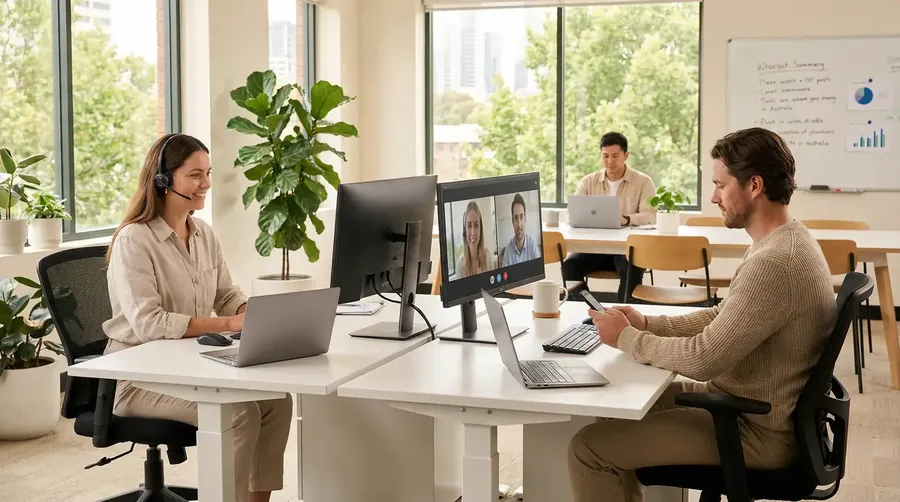
What You Need to Get Started
There are no special requirements. If you have a reliable internet connection and a device to make calls on, you are ready to go.
Internet Connection
A standard NBN or business broadband connection is all you need. No dedicated phone lines required.
A PC or Smartphone
Our free softphone app runs on Windows and Mac. The mobile app is available for iOS and Android.
A Credit Card, Once You Keep It
Not needed for the free trial. When you decide to keep Click2Call, add a card to load prepaid credit and turn on auto top-up to cover your monthly fees.
Exactly how to move your phone system
- 1
Create your Click2Call account at portal.click2call.com.au/join — takes about 5 minutes, active within 24 hours.
- 2
Add a temporary phone number from the portal. Your $11 trial credit covers a local number.
- 3
Test calls by diverting the new number to your mobile.
- 4
Divert your existing number to Click2Call (your current provider may charge for diverted calls).
- 5
We remotely configure your existing phones (if compatible).
- 6
Remove the mobile divert so your desk phones ring.
- 7
Submit a port request to move your main number to Click2Call permanently. This usually takes 5–10 business days (1300 and 1800 numbers up to 30 days). While it runs, the divert keeps calls reaching your Click2Call phones.
- 8
Once porting is complete, remove the temporary number.
Your current service keeps running
- Your current phone service stays active until your number moves
- Calls reach you as normal while you test
- You can run both systems side by side until the port completes
- Nothing changes with your provider until you lodge the port
What keeps working during the switch?
- Your current phone number — stays active until the exact moment the port completes.
- Your internet connection — phone and internet are separate services. If your internet is bundled with the phone line, ask your provider how the bundle changes.
- Your existing contract — you only cancel your old provider after the new system is fully working. If you're in a contract, ask them about exit fees.
Check before you port: anything still plugged into the line being ported stops working when the number moves. Monitored alarms shouldn't run over an internet phone service, so ask your alarm company about an IP or 4G communicator. EFTPOS terminals that dial over the phone line need an internet or 4G model, and a fax can move to Faxmail or an adaptor.
How long does it take?
Day 1
- Create account
- Account on within 24 hours
- Test calls on a temporary number
Day 1–2
- Phones and apps configured
After you port
- Number moves in 5–10 business days (1300/1800 up to 30 days)
- Close what’s left with your old provider
Keeping Your Existing Number — How Porting Works
Number porting is the process of transferring your existing phone number from your current provider to Click2Call. It is a regulated process in Australia, which means all carriers are required to support it. We can port numbers from Telstra, Optus, TPG, Aussie Broadband, Vonex, and all other major Australian carriers.
The most important thing to understand about porting is that your number keeps working. It stays active with your current provider throughout the process. On the day the port completes, the number moves to Click2Call. We load it onto your account beforehand, so your call flow is ready when it arrives.
The porting process typically takes 5 to 10 business days from the time it is lodged, and up to 30 days for 1300 and 1800 numbers. You submit the request in the portal with your account details exactly as they appear on your latest bill, plus a copy of that bill. We handle the carrier paperwork from there.
See the full number porting guide → — costs by number type, eligibility, what details you need, and why you should never cancel your old service first.
Number Porting Timeline
- 1
Day 1 — Sign up and account activation
Create your account. Activation within 24 hours. Add a temporary new number to start using the system immediately if needed.
- 2
When you’re ready — Port request lodged
Submit the request once you’ve tested and decided to stay, and we lodge it with your current carrier. Your existing number remains fully active throughout this period.
- 3
5–10 business days later — Port completes
Your number moves to Click2Call and you receive a confirmation email. Calls now ring on your new system. Up to this point your number was still working with your old provider.
- 4
After port — Tidy up your old account
Once the port is confirmed, contact your old provider to close anything left on the account, such as other lines, bundles or rented equipment, and check your final bill. Do not cancel before the port is complete.
Important: Do not cancel your existing phone service before the port is confirmed complete. Cancelling early can cause the port request to fail and may result in losing your number permanently.
PC App vs Mobile App — What Works Best
Click2Call provides a free app for both PC and smartphone. Understanding how each works will help you set up your team in the way that suits them best.
PC Softphone App
The PC app is our recommended solution for office-based staff. It is reliable for both inbound and outbound calling and integrates cleanly with your desktop workflow. Calls ring directly on screen, and you can manage transfers, hold, and call recording from the app interface.
Works on Windows and Mac. A USB headset is recommended for the best call quality, though the built-in microphone and speakers on most laptops work fine for everyday use.
Mobile App
The mobile app works well for outbound calls when your team is away from the office. However, we recommend against relying on it as the primary way to receive inbound calls. Push notifications on smartphones are not always reliable, which means incoming calls can be missed.
This is not a limitation specific to Click2Call — it is a general limitation of SIP apps on mobile operating systems. For reliable inbound call handling on mobile, use call forwarding instead.
Best Practice: Call Forwarding for Mobile Staff
The most reliable way to receive calls on a mobile phone is to route inbound calls directly to the staff member's actual mobile number. When a call comes in on your business number, Click2Call forwards it to the mobile number of your choice. The call rings just like a regular mobile call — no app required.
This approach gives your team the flexibility to work from anywhere without missing calls. Standard rates apply when calls are forwarded to an external mobile number. See our call flow setup guide for instructions.
Use your existing phones
- Most VoIP/IP phones work with Click2Call
- We can reconfigure them remotely
- No new hardware required in most cases
Older analogue phones work through an adaptor. If you’re unsure, or your phones came from your old provider, we can confirm compatibility — call us on 1300 884 879.
Do you need IT support?
- No — you can set this up yourself
- Step-by-step guides are available in our Help Centre
- Optional managed setup available for $300 + GST
- We can work with your existing IT provider
Setup Options
You have two ways to get set up. Choose the option that suits your team and your level of technical confidence.
Self-Setup
FreeConfigure your own system using our step-by-step Help Centre guides. Each guide covers a specific task — activating your account, adding phone numbers, setting up users, configuring call routing, and installing the softphone.
Most customers complete the full setup in under an hour. If you get stuck at any point, our support team is available by phone and email to help.
View Help Centre guidesManaged Setup
$300 ex GST ($330 inc GST)Our team configures everything for you. This includes setting up all user accounts, configuring your call routing and ring groups, installing and testing the PC softphone on each workstation, and setting up the mobile app on your team's phones.
We also lodge your number port request and monitor it through to completion. Once everything is set up and tested, we hand over a brief guide specific to your configuration.
One-off fee. Covers up to 3 users. Additional users are $50 + GST each. Email or call us to book.
Example: Small business switch
To give you a concrete idea of what it costs to switch, here is a typical scenario for a small office moving from a Telstra landline to Click2Call.
Scenario: Small office, 3 users, 1 existing Telstra number to port
PC softphone for desk use, mobile app for outbound calls when out of office
Monthly prices are ex GST; the $100 porting fee includes GST. Ongoing cost is $25/month per user. Each user includes a local number and 300 outbound minutes. A number you bring across runs on its own plan ($10/month as an inbound number). Self-setup is free.
The 5-Step Changeover at a Glance
- 1
Create Your Account
Sign up online in minutes. Account activated within 24 hours.
- 2
Add Your Number
Add a new number or keep your existing one. Each user includes a local number; extra numbers are $10/month.
- 3
Set Up Your Users
Add as many users as you need, at $25 per user per month.
- 4
Port Your Old Number
We lodge the port request. Local and mobile numbers usually take 5–10 business days, 1300/1800 up to 30. Your number keeps working until it moves.
- 5
Start Making Calls
Use the PC app, mobile app, or forward calls to your mobile.
Frequently Asked Questions
New Customers
Ready to get started? Fill in our signup form — takes about 5 minutes.
Start Free TrialActivation takes up to 24 hours after signup